Quick Start
Get Chief running in under 5 minutes.
Prerequisites
Before you begin, make sure you have:
- An agent CLI installed and authenticated. Chief supports:
- A project you want to work on (or create a new one)
Verify your agent CLI is working
Run the version command for your agent to confirm it's installed:
claude --version(Claude Code)codex --version(Codex)opencode --version(OpenCode)agent --version(Cursor CLI)gemini --version(Gemini CLI)
Step 1: Install Chief
Choose your preferred installation method:
brew install ben182/chief/chiefcurl -fsSL https://raw.githubusercontent.com/ben182/chief/main/install.sh | bashgit clone https://github.com/ben182/chief.git
cd chief
go build -o chief ./cmd/chief
mv chief /usr/local/bin/Verify the installation:
chief --versionStep 2: Create Your First PRD
Navigate to your project directory and create a new PRD:
cd your-project
chief new
This launches your agent CLI with a preloaded prompt. Work with the agent to describe what you want to build—your project goals, user stories, and acceptance criteria. The agent will help structure your requirements and write the prd.md file.
When you're done, type /exit to leave the agent session. Chief validates the markdown structure can be parsed:
prd.md- Structured PRD with freeform context and user stories (written collaboratively with the agent)
Iterating on your PRD
Run chief edit to reopen the agent and refine your prd.md. Chief will validate the structure when you /exit.
Step 3: Launch the TUI
Launch Chief's Terminal User Interface:
chiefOn first launch in a project without .chief/config.yaml, Chief runs chief setup, which asks for the settings that are easy to forget:
- Worktree setup command: runs in every new worktree, proposed from your lockfiles (and copying
.envwhen there is one) - Push and pull request when a run finishes, with a check that
ghis logged in - MCP servers and skills an unattended agent starts with: everything, only the project's
.mcp.json, none, or a file of your own - Review and consolidation: on or off, optionally with a skill
- Cloud box (optional): credentials, location and server type, and which untracked files to copy
Run chief setup again any time; every question opens on the current value. Everything else is in the Settings TUI (press ,).
Step 4: Start the Loop
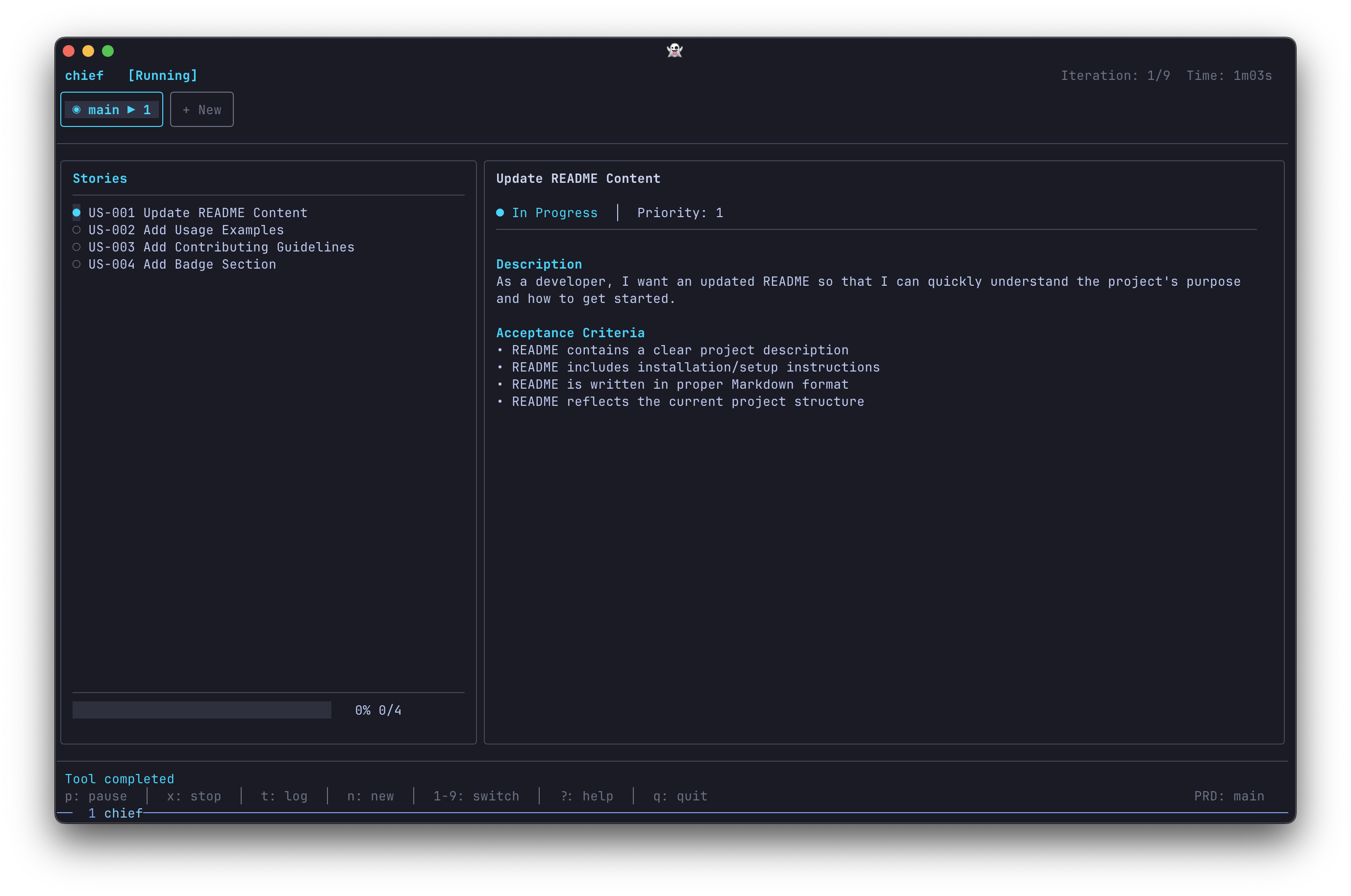
Press s to start the Ralph Loop. Chief will offer to create a worktree for isolated development, then begin working through your stories automatically.
The TUI shows:
- Tab Bar — All your PRDs with status indicators
- Stories List — User stories with completion status
- Story Details — Current story's description and acceptance criteria
- Live Activity — Real-time status updates from the agent
- Diff View — Press
dto see the commit diff for the selected story
Keyboard Controls
| Key | Action |
|---|---|
s | Start the loop (when Ready, Paused, Stopped, or Error) |
p | Pause the loop (finishes the current story, including its review) |
x | Stop the loop immediately |
t | Toggle between Dashboard and Log views |
d | Diff view — show the selected story's commit diff |
n | Open PRD picker to create or switch PRDs |
l | Open PRD picker in selection mode |
e | Edit current PRD |
1-9 | Quick switch to PRD tabs 1-9 |
j/↓ | Navigate down (stories or scroll log/diff) |
k/↑ | Navigate up (stories or scroll log/diff) |
PgDn / Ctrl+D | Page down (log/diff) |
PgUp / Ctrl+U | Page up (log/diff) |
+/- | Adjust max iterations |
m | Merge completed branch (in picker) |
c | Clean worktree (in picker) |
, | Open Settings |
? | Show help overlay |
q | Quit Chief |
Hands-off operation
Once started with s, Chief runs autonomously. You can watch the progress or walk away—it will complete your PRD while you're gone.
Step 5: Follow Up on What You Find
Once the loop finishes, click through the feature by hand. You'll spot small fixes and polish — a missing button, a wrong count, an empty state that should be hidden. Drop each one into the PRD's follow-up inbox (chief new already scaffolded an empty todos.md next to your prd.md):
- [ ] Hide the media card when no media is attached
- [ ] Add a download button to the media view
Then turn those notes into stories and let the loop clean them up:
chief followup     # converts each - [ ] item into a new todo story
chief              # the loop works through only the new follow-up stories
See Follow-ups for the full workflow.
What's Next?
Now that you've run your first Chief loop, explore these resources:
- Installation Guide - Detailed installation options for all platforms
- How Chief Works - Understand the autonomous loop
- The Ralph Loop - Deep dive into the execution model
- PRD Format - Write effective PRDs
- Follow-ups - Turn post-launch fixes into stories
- CLI Reference - All available commands and options